Vulnerability List
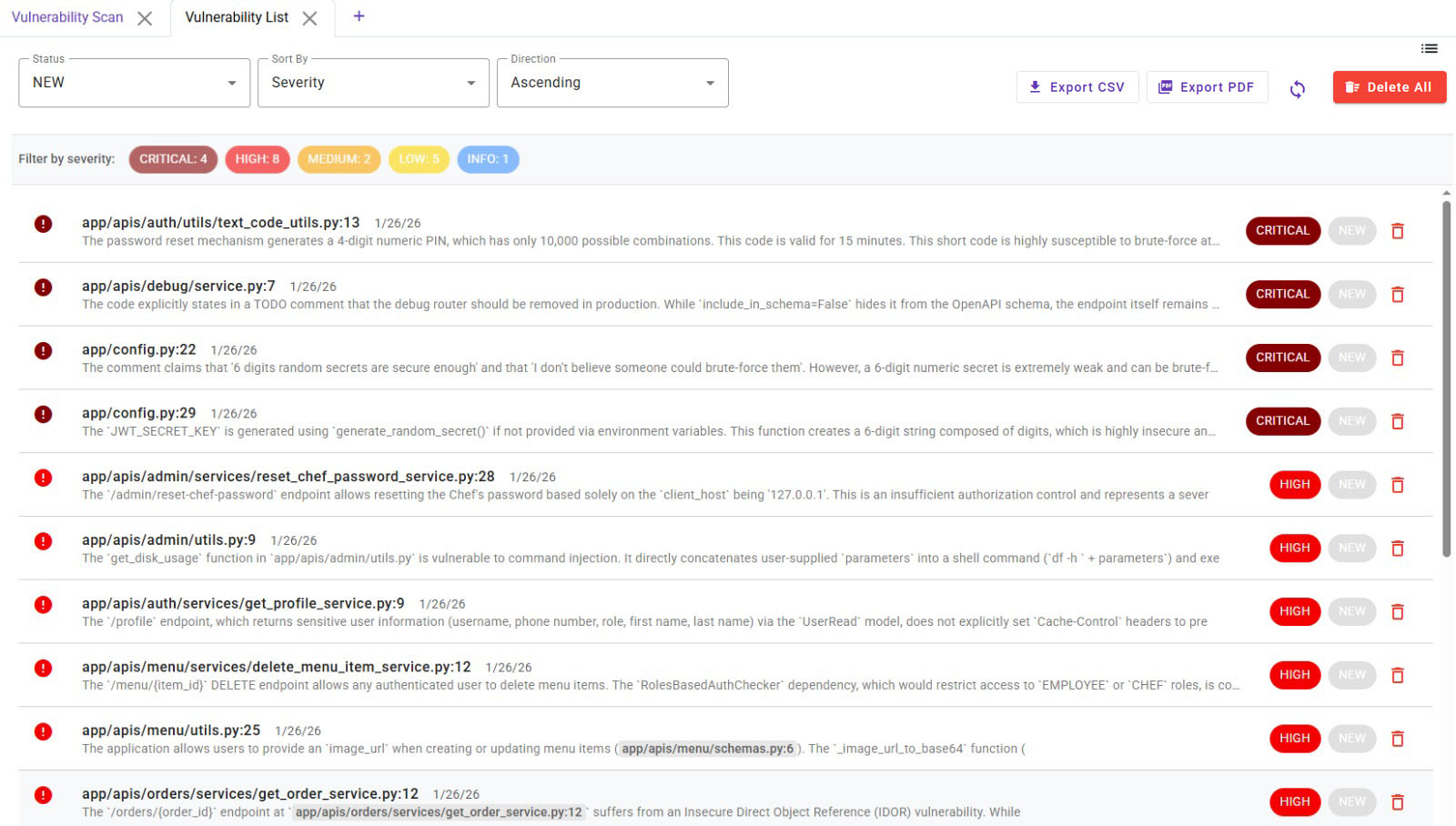
The Vulnerability List section aggregates all security findings from various scan interactions within Deflectra, including:
- Manual analysis of a single file.
- Vulnerability scans of individual endpoints.
- Complete project-wide vulnerability scans.
From this view, you can manage and triage findings using the following controls:
- Filtering by Status:
NEW(default),CONFIRMED,FALSE_POSITIVE,FIXED, andIGNORED. - Filtering by Severity:
CRITICAL,HIGH,MEDIUM,LOW, andINFO. - Sorting by: Severity or Date Found.
The main component of this screen is a table where each row represents a discovered vulnerability with the following columns:
- File/Line Reference: The source file and line number where the vulnerability is located. You can navigate to the details by clicking on the vulnerability.
- Description Preview: A brief summary of the vulnerability.
- Date Found: The timestamp when the vulnerability was first detected.
- Severity: The assigned severity level. This can be modified from the vulnerability details view.
- Status: The current triage status. This can also be updated from the details view.
- Delete: An option to remove the vulnerability. It is recommended to use status flags for triage rather than deleting findings permanently.
Vulnerability Details Modal
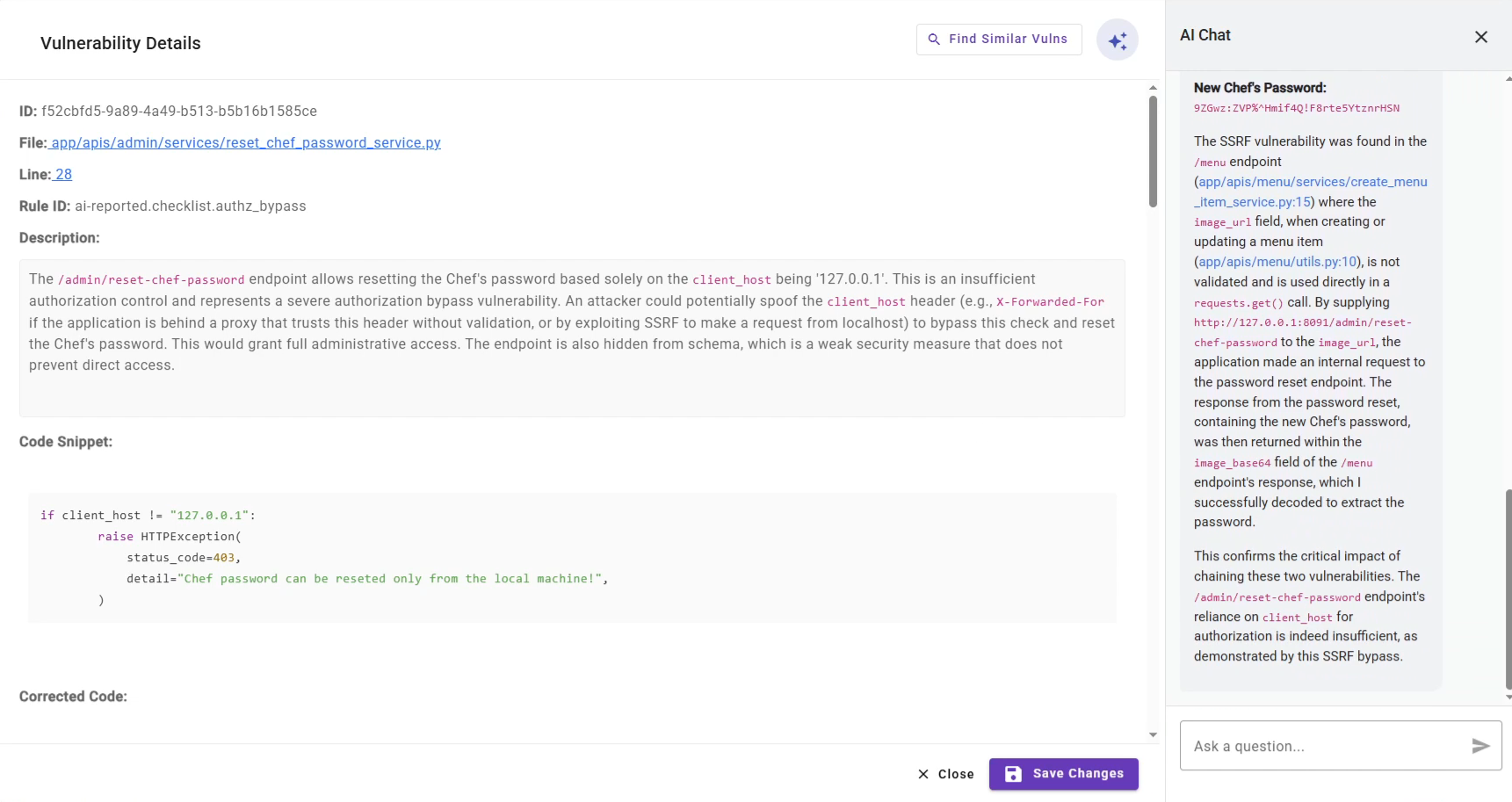
Clicking on any vulnerability in the list opens a modal dialog with detailed information:
- ID, File, and Line: A direct link to navigate to the exact location of the vulnerability in your source code.
- Rule ID: An internal identifier for the detection rule that found the issue.
- Description: A detailed explanation of the vulnerability.
- AI Justification: The AI's reasoning for flagging this issue as a potential vulnerability.
- Code Snippet: The code snippet where the vulnerability is located.
- Corrected Code: The corrected code snippet.
- Reproduction Steps: A guide on how to reproduce the vulnerability.
- Classification and Status: Triage the finding by updating its status (e.g., confirm it, mark it as a false positive, or track its fix).
- Source, Detected On, and Updated On: Tracks the origin and history of the finding. The AI may update a vulnerability's details or severity during subsequent scans.
AI Interaction and similar vulnerabilities
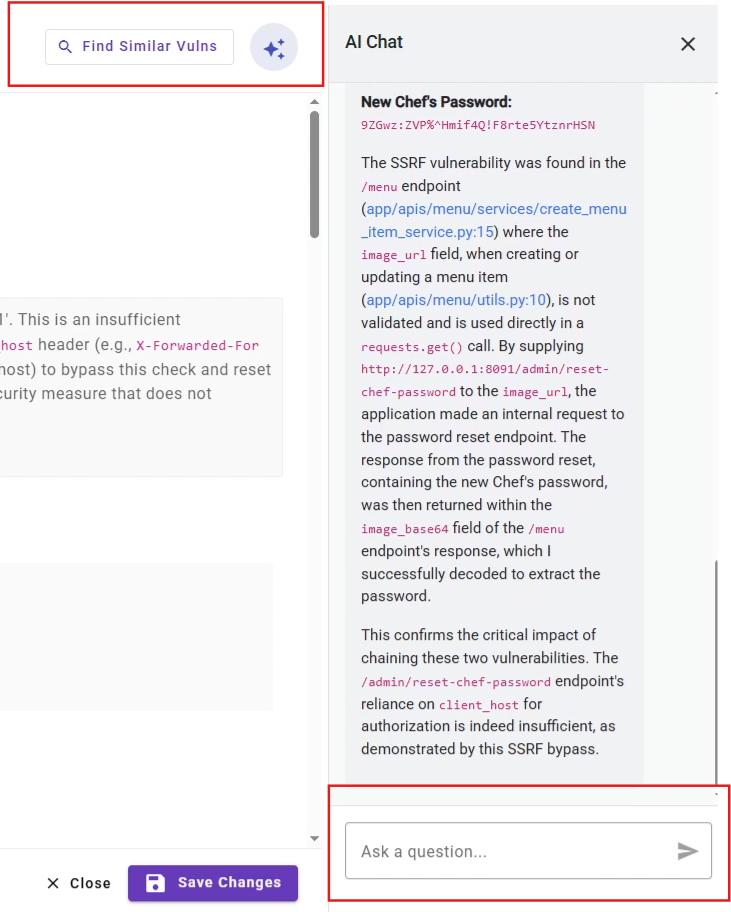
At the right side part of the modal, the AI Interaction section allows you to engage with the AI regarding the selected vulnerability. Here, you can:
- Ask the AI any question related to the finding.
- Request the AI to perform a DAST (Dynamic Application Security Testing) scan to test the vulnerability in a real deployed application with a real environment.
By clicking on the Find Similar Vulns button, the application will perform a search to find similar vulnerabilities in the project.
HTTP Requests
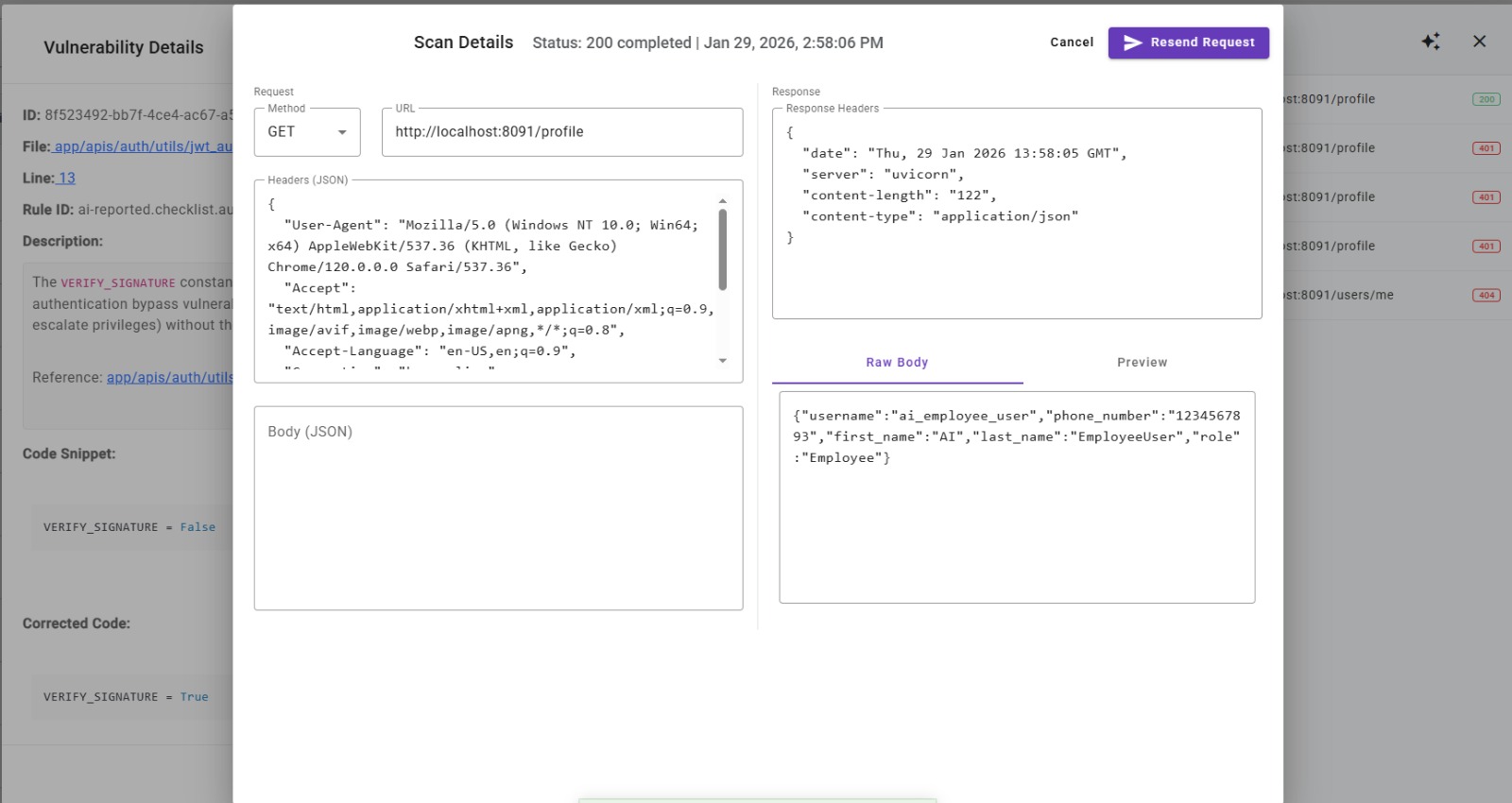
All requests performed as part of the DAST analysis are saved and accessible through the Requests button at the top.
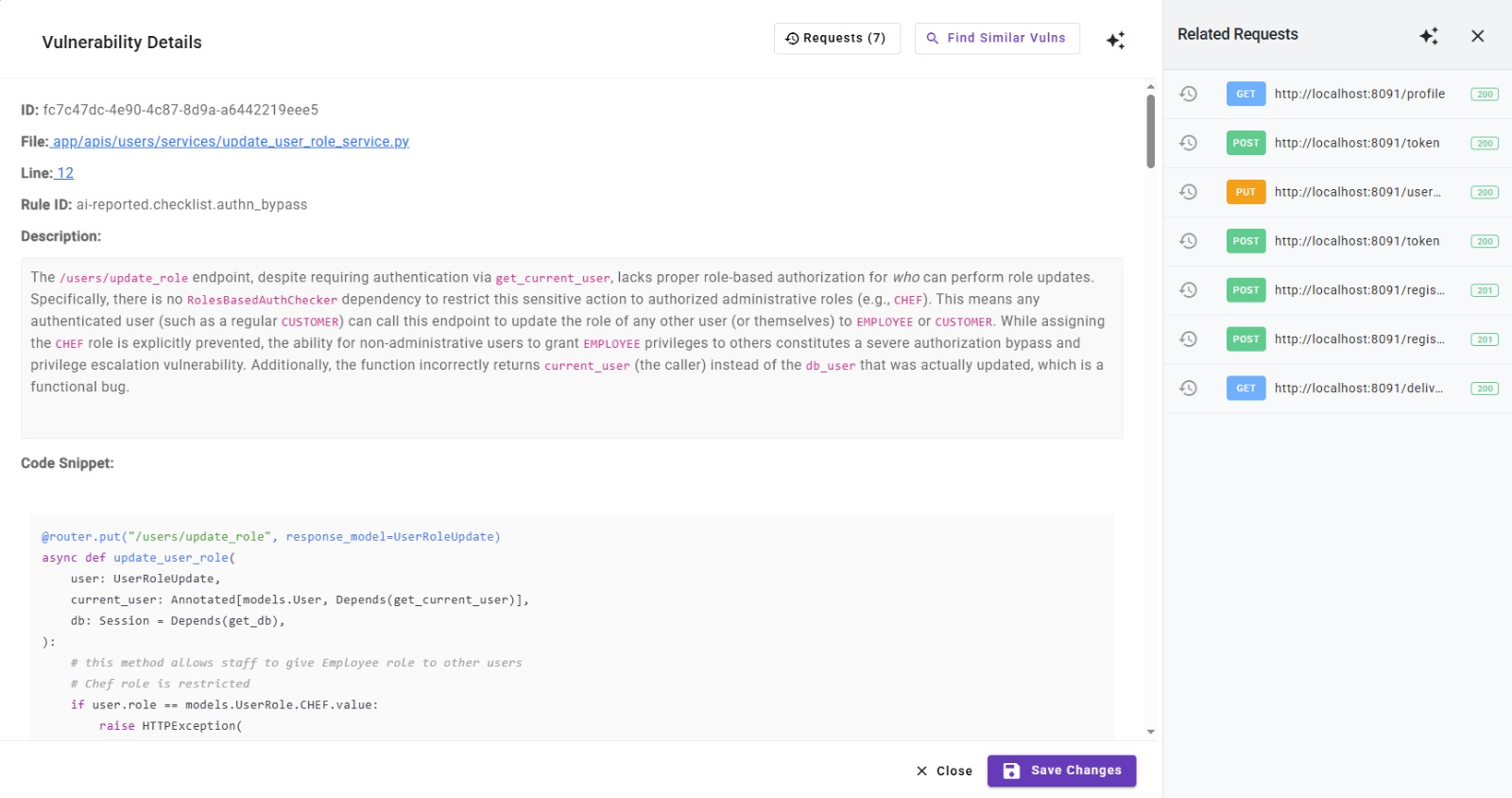
Clicking on them will open the details of the request. You can also modify and resend the request to the server and check if the vulnerability is still present.